
Readme
Your tmux, in the browser and on your phone. HexoKit is a remote console for the machine you actually work on — every tmux session and pane as a live terminal, in a sidebar, from your desk or your couch. It’s the modern, terminal-native answer to the old server web-console: nothing to configure, no database, state read straight from tmux.
What makes it so good right now is what tends to run in those panes: AI coding agents, many at once. rk riff spawns each one in its own git worktree, and the dashboard lets you watch the whole fleet. But HexoKit never wraps the agent — a pane is just a pane. It’s equally a build, a REPL, an ssh session, htop. The agent is one of the things you run, not the thing HexoKit is. That’s the point: when the agent tooling churns underneath you (and it does, monthly), the terminal layer stays put.
Install
curl -fsSL https://hexokit.com/install | shInstalls the entire HexoKit toolkit via Homebrew, handling tap trust automatically. HexoKit relies on its sibling tools (wt for the riff worktree flow), so the full-toolkit install is the supported path. The formula installs the hexokit command with rk as its fully interchangeable short name (xk and run-kit are aliases too) — every command here works with any of them.
Requires tmux ≥ 3.4 (checked at runtime; rk doctor reports your version). See the install & access guide for prerequisites, upgrades, and troubleshooting.
Quick start
Three commands from install to a guided tour:
rk daemon start                 # start the dashboard daemon on :6123
open http://localhost:6123      # open the dashboard (xdg-open on Linux)

# in a tmux session (tmux new -s work if you aren't in one):
rk tutorial                     # guided first run — an agent walks you through the product, act by act
Then spawn your first real agent workspace — a git worktree, a tmux window inside it, your agent launched:
rk riff # spawn an agent workspace (--skill /name picks the slash-command)The new workspace appears in the sidebar; click into it to drive the agent — or any command — from the dashboard, on any device.
Two optional extras:
shll setup agent(once per machine; run automatically at the end of a toolkit install) makes agent panes report live busy/waiting/idle state in the dashboard — see Agent state.- The desktop app is an alternative front door on macOS and Linux:
rk desktop install, then one Start & connect click replaces thedaemon start+opensteps.
To upgrade later, rk update pulls the latest version via Homebrew and restarts the daemon. Coming from the old rk Homebrew formula, or something failing? See the install & access guide and rk doctor.
Why HexoKit?
| HexoKit | |
|---|---|
| It is | A remote, phone-first console for your tmux — agent-agnostic, no database, state derived from tmux + filesystem. A spawner (rk riff) and a dashboard (rk serve) that compose. |
| It isn’t | An agent wrapper. It doesn’t speak any agent’s protocol, parse any agent’s output, or care what’s in the pane. That’s deliberate — it’s what makes it outlive whichever agent you run. |
- One command per parallel agent —
rk riffcreates a worktree, opens a tmux window in it, and launches your agent.rk riff -N 3spawns three workspaces in parallel; failures roll back cleanly. - Watch a whole fleet, from anywhere — every tmux session and pane shows up in a sidebar. Click for a live browser terminal; pin several into a board; open the same dashboard on your phone over Tailscale.
- Mobile-first, keyboard-first —
Cmd+Kcommand palette is the primary discovery surface. Touch targets are tuned for mobile so you can steer a session from your phone while away from your desk. - The dashboard layer over
fab-kitandwt—rk riff --skill /fab-ffflaunches a full fab-kit pipeline in an isolated worktree. Reach for HexoKit when you have more parallel changes than one terminal can hold.
Screenshots
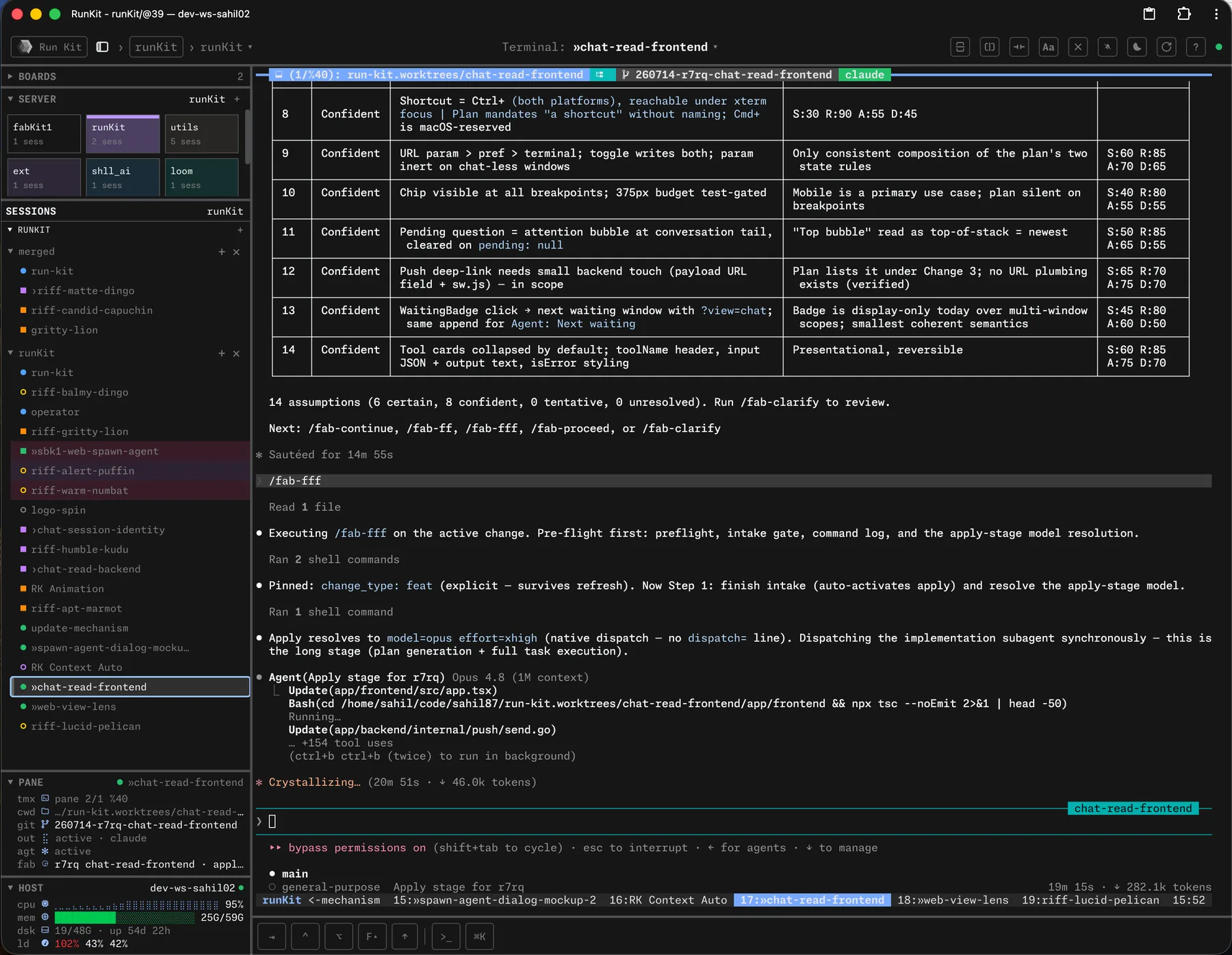
The mental model
HexoKit is two independent halves that compose:
rk riff              rk serve
  ▼                    ▼
spawns agent        runs the
workspaces ─────►   browser dashboard
(tmux + worktree)   (watches tmux)
You can run either alone. Run rk riff in any tmux session without ever starting rk serve — you get the spawning behavior, no dashboard. Run rk serve and never call rk riff — you get a tmux browser dashboard for sessions you spawn manually. The two are designed to compose, not depend on each other.
rk riff — the spawner
One invocation gives you a git worktree, a tmux window inside it, and one or more panes ready to go. The default pane runs your coding agent, but a pane can run anything — rk riff is a workspace launcher, not an agent launcher.
- Pane array:
--skilland--cmdare repeatable; each occurrence adds one pane, in argv order. - Layouts:
--layoutpicksauto(default),tiled,even-*, ormain-*. - Presets: built-ins
discuss,incognito,blankship in the binary; add or override skills underriff_presetsin~/.config/hexokit/config.yaml; invoke asrk riff <name>. - Parallel:
-N <N>spawns N workspaces; failures roll back before exiting. - wt passthrough: flags after
--go towt createverbatim (e.g.--base,--name).
rk riff --skill /fab-fff --cmd "just dev"       # 2 panes (agent + dev server)
rk riff discuss -N 3                            # 3 parallel 'discuss' preset workspaces
Prerequisites: must be inside a tmux session and a git repository (or pass --repo <path>), with wt and the launcher (default claude --dangerously-skip-permissions) on PATH. In a fab-kit project, the launcher is resolved per-project through fab agent (the providers / agent tables in fab/project/config.yaml) — point it at any agent CLI, or any command at all.
See the riff guide for the full reference.
rk serve — the HTTP server
Start the HTTP server in the foreground. Configurable via RK_HOST (default 127.0.0.1) and RK_PORT (default 6123). The port also has a durable home: set port: 4000 in ~/.config/hexokit/config.yaml and run rk daemon restart — RK_PORT still wins when set (precedence: default 6123 < config.yaml < RK_PORT).
rk serve                                # foreground on 127.0.0.1:6123
RK_HOST=0.0.0.0 RK_PORT=8080 rk serve   # bind all interfaces, port 8080
To run it in the background, use the rk daemon subcommands (start, restart, stop, status). The daemon runs in its own dedicated tmux server (rk-daemon), completely separate from your sessions; restarts are idempotent kill-and-restart with no polling loop or signal files. Restart the daemon and everything you’re running keeps running — the console reconnects automatically.
The daemon also manages a code-server beside it, powering the dashboard’s code lens — a full editor at the window’s git root, served same-origin behind /code/. It installs itself on first daemon start (or rk code-server install); a code-server you installed yourself is respected and never touched. Details in the install & access guide.
Status dots — read every window at a glance
Each window in the sidebar, dashboard, and pane panel carries a single status dot that tells the window’s local story — which journey runs in the pane, whether anyone is working right now, and whether the pipeline failed here — using two orthogonal channels plus three additive overlays, and a right-edge PR glyph for the remote story:
- Hue = journey:
fab building (intake/apply/review) →
fab PR-ready / done (ship/review-pr/done) ·
an ad-hoc agent. A plain window is gray — color is reserved for a journey.
- Shape = liveness, the same meaning in every hue: solid = work happening now (agent mid-turn; floor: output flowing) · ring = at rest (no live worker, idle or waiting agent, parked done, quiet shell).
- Overlays = additive flags: a small red center flags a failed review/review-pr — inside the ring at rest, or as a bullseye (dark gap ring) over a solid while a rework agent is live; a yellow halo means an agent is waiting on you; a neutral underbar beneath the dot (sidebar row only) means the window is on the fab operator’s watchlist.
- PR glyph (right edge): the branch’s PR on GitHub — green open · yellow checks running · red failing · purple merged · gray draft. The dot never renders PR state.
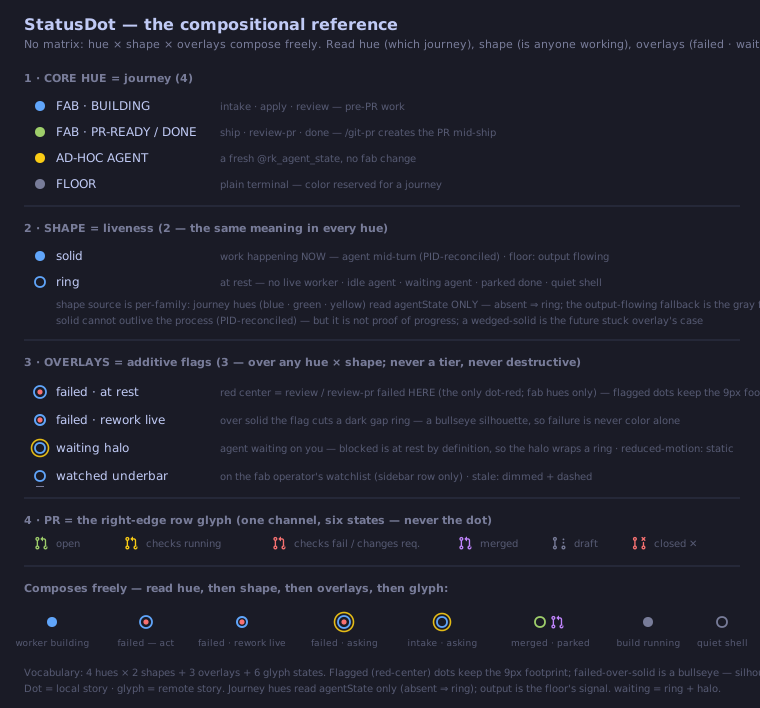
See the status dot reference for the full legend, the per-state rendering, and the design rationale.
Agent state
Windows running an AI agent can report a live lifecycle state in the sidebar and pane panel: active (turn in progress), waiting (blocked on you — a permission prompt or question), or idle (turn done, with elapsed duration). waiting is the state worth a glance at your phone: the agent isn’t working, it’s waiting for you.
This is opt-in and needs a one-time setup per machine — the toolkit-wide wiring covers it (and runs automatically at the end of a toolkit install):
shll setup agent # places the shll toolkit skill + installs HexoKit's dashboard hooksIt delegates the hook install to rk agent setup, which shows the settings diff and asks before writing; rk agent setup --uninstall removes exactly the HexoKit-owned entries.
The setup installs agent-harness hooks into your user-global agent configs — Claude Code, Codex, Gemini CLI, GitHub Copilot CLI, Kimi Code, OpenCode, and Antigravity CLI, each wired when its binary is on PATH — that stamp a @rk_pane_agent_state tmux pane option on lifecycle events. Each hook is a thin wrapper delegating to rk agent hook, so hook fixes ship in the binary and track rk update — no settings changes, no session restarts. Hooks work for any session, in any repo, under any workflow; re-running the setup is idempotent and never touches your other hooks. Until it’s run (and agent sessions are restarted), agent state shows —. Codex additionally needs its native trust review: open codex and trust the HexoKit entries via /hooks.
The per-harness capability matrix (verified versions, event mappings, transcript support, honest gaps) lives in the agent hook integrations guide; the cross-repo convention is documented in docs/specs/agent-state.md; upgrading from an older hook generation is covered in the install & access guide.
The operator — one agent to run the server
rk operator opens the operator — a per-tmux-server singleton window running the fab-kit operator-tier agent, role-marked so the dashboard pins it. Where rk riff spawns workers, the operator is the coordinator you talk to: it watches the fleet, dispatches and unblocks changes, and escalates to your phone when something needs you. Requires fab-kit on PATH; re-running switches to the existing tab. Hand it a templated work item from the shell with rk operator request <template> (--list prints the registry; a busy operator queues the request and it drains when idle).
Boards — watch many panes at once
A board is a named, cross-server pane dashboard: pin any tmux window from any server into it, and the board renders all pinned panes side-by-side — perfect for watching three parallel agent sessions next to the just dev server they’re editing. Pin from the sidebar’s pin icon or the Cmd+K palette; pin state lives in tmux, so the same board URL shows the same panes on your phone. See the boards guide for pinning, keyboard cycling, resizing, and mobile behavior.
GUI — the host’s desktop in a tile
The GUI surface runs the host’s desktop as a fourth tile beside tty/code/web, off by default and shared by every viewer and every agent. rk gui on starts a private X display with a window manager and reveals the 4th tile button (⌘4). IceWM is the default desktop; pick another (LXQt, XFCE, Plasma, LXDE, MATE, Cinnamon) from Settings → gui.wm or with rk gui wm <name> — rk gui wm --list shows what’s installed and what each missing one takes to install. See the GUI guide for desktops, resolution, phone controls, and troubleshooting.
Drive it from your phone (HTTPS over Tailscale)
Some browser features (clipboard, secure context) require HTTPS. Accessing HexoKit from another machine on your tailnet also requires HTTPS:
- Enable HTTPS at DNS > HTTPS Certificates.
- Run
sudo tailscale set --operator=$USER(one-time — letstailscale serverun without sudo). - Run
tailscale serve --bg http://localhost:6123. - Open
https://<machine>.<tailnet>.ts.neton your phone or another laptop.
For a stable custom hostname or public access via Funnel, see the Tailscale guide.
Desktop app
A native desktop shell — an Electron window that wraps your dashboard and frees the browser-reserved ⌘ keyboard tier. Install and update it with the CLI (macOS and Linux):
rk desktop install    # fetch the latest release and install it
rk desktop update     # same, but a no-op when already current
rk desktop status     # installed vs latest version (read-only)
The CLI path matters: on macOS it produces a quarantine-free, digest-verified install that opens cleanly — a browser-downloaded DMG gets blocked by Gatekeeper on every install and update. On Linux it downloads the AppImage, verifies the release digest, extracts it into ~/.local/state/hexokit/desktop, and writes a launcher entry plus a hexokit-desktop symlink in ~/.local/bin (rk desktop uninstall removes it). Updates ship through rk desktop update or the app’s Restart to Update menu item — the app never updates itself.
The app’s welcome page connects three ways: This Mac / This Machine (one-click daemon start), over SSH (bootstraps HexoKit on the remote box via rk remote), or a URL. It never starts, stops, or updates anything on its own, and your tmux sessions survive every daemon action. Details and the manual fallback are in the install & access guide.
Push notifications
Any process on the box can push a real OS-level notification to your phone or desktop — even when the dashboard tab is closed — via Web Push:
rk notify "deploy finished" --title "CI"It’s fail-silent: if the server is unreachable it exits 0 and prints nothing, so it never stalls a calling script or agent loop. Opt in from the browser via the bell icon in the top bar or Cmd+K → Notifications: Enable push (requires HTTPS or localhost). See the notifications guide for setup and troubleshooting.
Shell completion
shll setup shell wires tab-completion for every installed shll tool — including hexokit and the rk alias — into your rc file (zsh, bash), and runs automatically at the end of a toolkit install. Re-running is a no-op when the block is already present.
Prefer wiring just this tool by hand? rk shell-init <shell> emits the eval-safe block on its own:
eval "$(rk shell-init zsh)" # in ~/.zshrc — also: bash, fish, powershellCommand reference
| Command | What it does |
|---|---|
rk riff | Create a worktree + tmux window + agent/command pane(s). |
rk tutorial | Open the guided tour — an agent-run tutorial tab in this session. |
rk operator | Open the operator — the server-wide orchestrator agent tab (singleton); request <template> hands it a templated work item. |
rk serve | Start the HTTP server (foreground). |
rk daemon | Manage the background daemon (start, restart, stop, status). |
rk status | Show a tmux session summary. |
rk url | Print the HexoKit server URL (config-derived; a heuristic for agents, not a liveness probe). --mcp prints the /mcp MCP endpoint. |
rk ports | Print the port policy — reserved blocks, daemon default, effective port, and collision warnings (not a listing of listening ports). |
rk skill | Print the agent skill bundle — a static usage briefing for agents operating HexoKit. |
rk mcp | MCP server over stdio — an allowlisted proxy over rk verbs for chat clients with no shell on the box (Claude Desktop connector command: ssh <box> rk mcp). |
rk notify | Send a Web Push notification to your subscribed devices. Fail-silent. |
rk present | Show a file, directory, :port, or URL to the user as a web tile on the current window. |
rk cron | Scheduled agent prompts (add, edit, list, rm, mute, pin, tick). |
rk gui | The host’s desktop as a tile — on/off/status, wm (pick a desktop; --list shows installed and installable ones), resize, and the agent verbs (exec, shot, key). |
rk doctor | Check runtime dependencies. Run this first when something breaks. |
rk agent | Agent instrumentation — setup installs the state hooks + tmux guard shim, usually via shll setup agent (see Agent state). |
rk code | Run VS Code palette commands in the open code lens editor from the shell. |
rk code-server | Manage the rk-owned code-server install (install, update). |
rk mux | Tmux substrate operations — server create/adopt/reap, messaging, pane capture, config scaffold, tmux guard. |
rk tab | Drive a tab’s UI state — layout, web tabs, code root, sidebar signals (color/mark/note/flair/owner) — from the shell. |
rk board | List boards and pin/unpin/reorder windows on the cross-server board dashboards (show/pin/unpin/reorder). Needs rk serve up. |
rk role | Mark or unmark the current window as the server’s operator. |
rk update | Upgrade via Homebrew and restart the daemon. |
rk desktop | Install/update the desktop app on macOS and Linux (install, update, status, uninstall). |
rk remote | Use SSH-only machines as HexoKit hosts (add, connect, list, status, disconnect, remove). |
rk completion | Generate shell completion scripts (or use rk shell-init for eval-safe output). |
Run rk <command> --help for full flag details, or see the full command reference for every command and flag.
Troubleshooting
rk rifffails with “not in a tmux session” — riff requires$TMUXto be set. Start tmux first (tmux new -s work), then runrk riffinside it.rk rifffails with “wt not found” — installwtviashll install wt, or install the full toolkit from https://shll.ai.rk rifffails with “not inside a git repository” — riff creates a worktree, so it needs a repo.cdinto one, or pass--repo <path>naming the repo’s top-level directory.- Agent state shows
—for every window — runshll setup agentonce on the machine, then start a fresh agent session (hooks apply to new sessions, not already-running ones). A pane sitting at a plain shell also reads—by design. - Daemon misbehaving and a plain restart doesn’t help —
rk daemon restart --fullkills the entire rk-daemon tmux server (including therk-jobs,rk-code-server, andrk-remotessibling sessions) so the start births a genuinely fresh server, then reconnects any remote tunnels that were up. It refuses to run from a pane inside the rk-daemon server itself, where the kill would take down the invoking pane mid-restart. - Anything else broken — run
rk doctor. It checks tmux,wt, the launcher binary, port availability, and prints per-dependency status.